RGB Cooling Laptop Stand: Better Posture, Less Heat
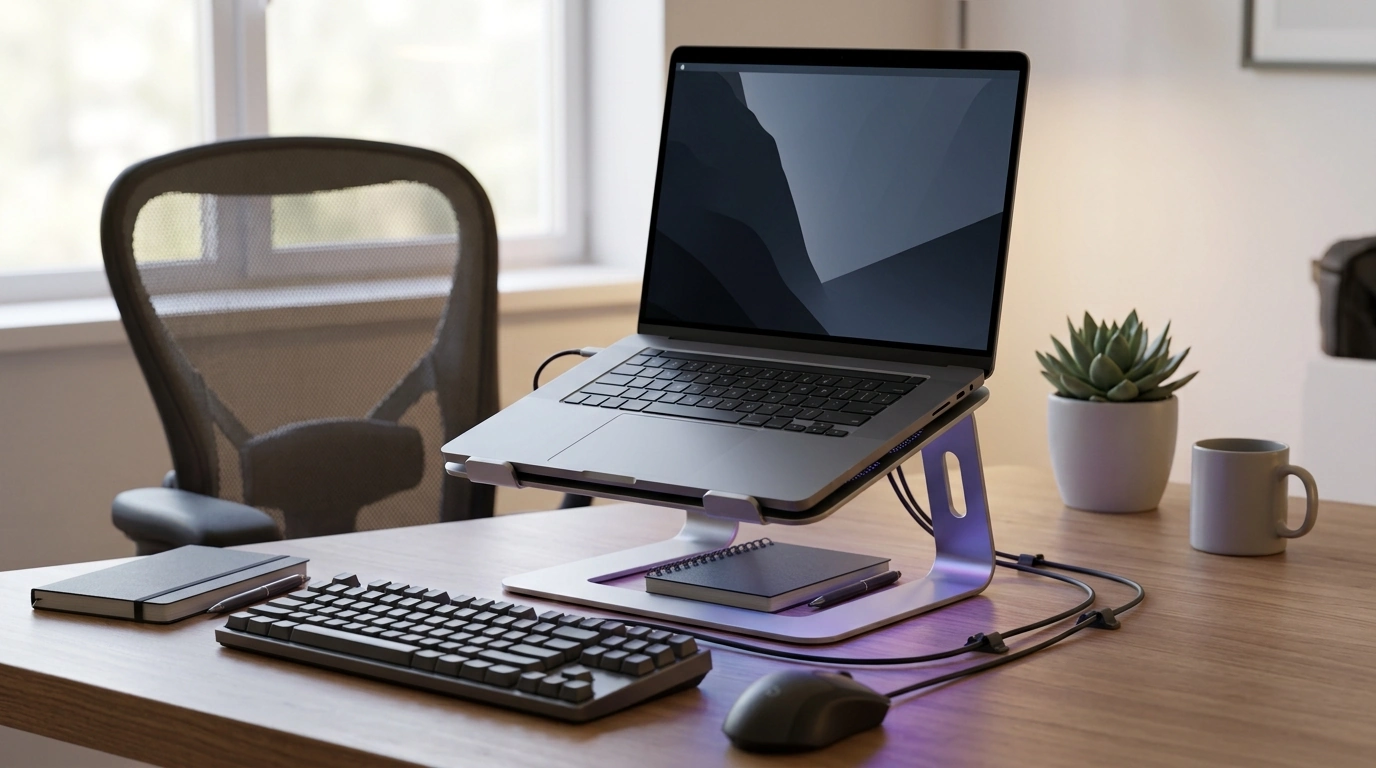
Adjustable Laptop Stand with RGB Light & Cooling Fan: Comfort, Airflow, and a Cleaner Desk Setup
A laptop stand can solve three common setup problems at once: screen height that strains the neck, limited airflow that encourages heat buildup, and clutter from cables and accessories. An adjustable stand with active cooling and RGB lighting can make a desk feel more comfortable for long sessions—whether working, studying, or gaming—without requiring a full workstation overhaul.
What This Stand Changes in a Daily Setup
The biggest difference shows up fast: posture, heat, and usable space. By lifting and angling the laptop, the screen sits closer to a natural line of sight, while the fan moves air under the chassis where desks often trap heat.
- Raises the screen closer to eye level to reduce neck bending during typing, reading, and calls.
- Tilts the laptop to a more natural viewing angle, which can ease wrist and shoulder tension when paired with a mouse or external keyboard.
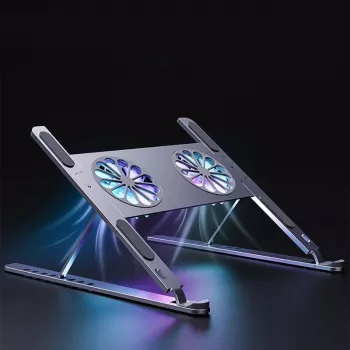
- Adds a built-in cooling fan to move air under the laptop, supporting better heat dissipation during heavy loads (video calls, editing, gaming).
- RGB lighting can function as low-glare ambient light for a more cohesive gaming/streaming desk aesthetic.
- Creates usable desk space beneath the laptop for notebooks, hubs, or compact keyboards.
Key Features to Look For (and Why They Matter)
Not every stand “fits” every setup. A quick check on adjustability, stability, and airflow can save you from buying something that looks good but feels awkward after day two.
- Height and tilt range: More adjustability helps match different chairs, desks, and user heights; aim to keep the top of the screen near eye level.
- Stability: A rigid frame and non-slip contact points help prevent wobble during typing or when connecting cables.
- Cooling performance: Fan placement and airflow path matter; active cooling is most helpful when the laptop’s intake/exhaust vents are partially blocked by a flat desk surface.
- Noise expectations: Fans vary; quieter operation matters for shared spaces, streaming, and calls.
- RGB controls: Prefer simple on/off or mode switching; subtle lighting is often more comfortable for long sessions than bright, fast effects.
- Portability and footprint: A stand that folds or adjusts quickly is easier to move between rooms or pack for travel.
Quick fit check before buying
| Check | What to measure | Good sign |
|---|---|---|
| Laptop size compatibility | Laptop width/depth and base vent location | Base fits fully with vents unobstructed |
| Desk space | Available depth for stand + mouse area | Stand doesn’t force keyboard too close to desk edge |
| Viewing height | Seated eye level vs. current screen top | Screen can rise enough to reduce neck bend |
| Noise tolerance | Typical room noise (office, dorm, streaming) | Fan can run without being distracting |
| Cable reach | Charging cable and peripherals length | Ports remain accessible without strain |
Comfort and Ergonomics: Setting the Height and Angle
Small adjustments can do more than expensive accessories—especially if the current setup forces a “chin-forward” posture. Basic ergonomics guidance aligns on keeping your head upright, shoulders relaxed, and screen positioned to reduce repeated neck flexion (see OSHA’s workstation guidance and posture tips from Harvard Health: OSHA Computer Workstations eTool, Harvard Health ergonomics overview).
- Start with screen position: Bring the display up so the top portion of the screen sits near eye level; this reduces forward head posture during long sessions.
- Use tilt to cut glare: Small angle changes can reduce reflections and prevent “leaning in” to read.
- For frequent typing: Pair the stand with an external keyboard and mouse so wrists stay neutral while the screen stays elevated.
- Stabilize the whole posture: Feet flat, elbows near 90 degrees, shoulders down; adjust the stand first, then fine-tune chair height.
- If typing on the laptop keyboard: Choose a moderate lift—too steep can push wrists into extension and feel tiring over time.
Cooling Fan Benefits: When Active Airflow Helps Most
Active airflow doesn’t “upgrade” your laptop’s internal cooling system, but it can help in the situations where desks, dust, or warm rooms make heat management harder. If performance slows during sustained workloads, that can be related to thermal throttling—one of the first troubleshooting steps is improving airflow (Intel overview: Intel: thermal throttling information).
RGB Lighting: Useful, Not Just Decorative
Setup Tips for a Cleaner Desk (Work, School, or Gaming)
Who This Stand Fits Best
Product Snapshot: Adjustable Laptop Stand with RGB Light & Cooling Fan
If the goal is a practical, affordable upgrade—better posture, better airflow, and a tidier footprint—this Adjustable Laptop Stand with RGB Light & Cooling Fan is positioned as a simple swap that changes how the desk feels day to day. It’s especially useful in warm rooms, long sessions, and compact setups where vertical space matters.
- Price point: $29.82 (in stock)
- Best use cases: Long work sessions, gaming, warm rooms, compact desks
- Pairing idea: For portable setups or limited outlets, add a high-capacity charger like the 120W Fast Charging Power Bank 50000mAh for Samsung to reduce cable shuffling between rooms.
FAQ
Does a cooling fan stand actually help prevent overheating?
Results vary by laptop design and workload, but lifting the laptop to improve ventilation plus adding active airflow can reduce heat buildup—especially on restrictive surfaces or during sustained tasks. Room temperature and dust buildup also affect how much improvement you notice.
How high should a laptop be raised on a stand?
Aim to bring the top portion of the screen near eye level while keeping shoulders relaxed and your head upright. If you raise the laptop significantly, using an external keyboard and mouse helps keep wrists in a more neutral position.
Is RGB lighting distracting for work or school?
It doesn’t have to be—static colors, dim brightness, or slow transitions tend to feel calmer than fast effects. Most users treat RGB as optional ambient light and turn it down or off when focusing.



Leave a comment